Events
Overview
The Syntasa platform currently supports two user-defined events: File Watcher and Adobe Feed Watcher (which monitors Adobe clickstream data). Both event types monitor a specific location for new files at a user-defined interval. The system can use these events to trigger downstream jobs. Users can mark events as "Active" or "Inactive" as needed.
Event Screen can be accessed from the Main Menu Button on the Left corner. Clicking on the Main Menu Button will open the Sections screen. The event would be available under the Resources Section.
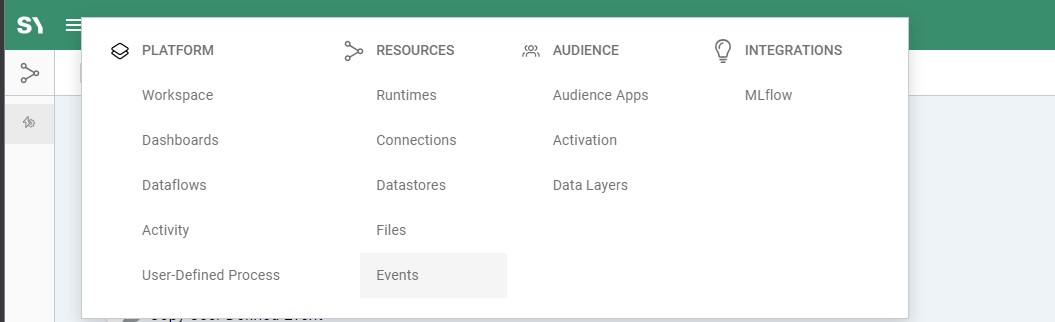
On the Event screen, there's the option of the Plus symbol on the right screen, clicking on the Plus symbol to create a new Event.

Supported Event monitoring locations:
- AWS S3
- GCP GCS
- FTP
- SFTP
- ONPREM (HDFS)
File Watcher Events
Users can configure a file watcher event to monitor for new files in a specific directory. When a new file with a given pattern arrives in the specified directory.
Adobe Feed Events
This event type can be used to raise an event after the completion of the hourly/daily Adobe clickstream data feed. The system monitors the given manifest file patterns in a specified directory and can trigger a processing event downstream.
**Configuration
Name:** Provide a friendly name for what is being monitored.
Description: A short informative description
Tags: This a tag that is used to help you group and organize a collection of resources/ apps /notebooks /folders together.
Activate Toggle button: This will enable/disable the event.
Event Type: Adobe Feed Watcher / File Feed Watcher
Connection: Select where the files are located from a predefined connection. if it's a new connection, see connections.
Poll Interval: How frequently should the event check for new files, 1 being every minute? We recommend 30–40-minute intervals to start with as too frequent may incur higher costs with your cloud provider. Note There is a cost associated with Events, this is impacted by data volumes in the given connection location.
your view may now differ depending on which Event type you are configuring, now jump to the steps for your event type.
**Sharing Options:**This depends on your sharing preference.
Adobe Feed Details
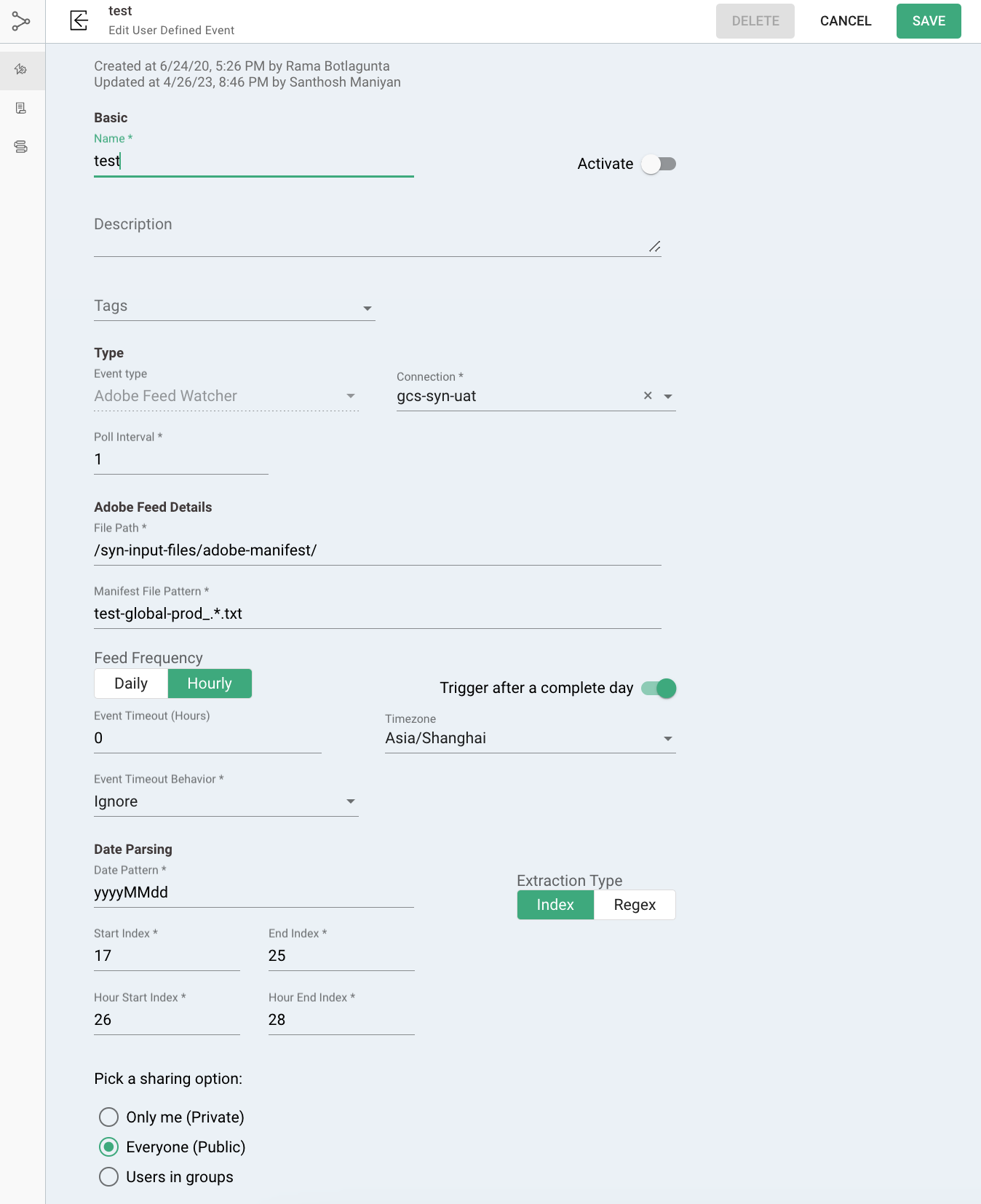
File Path: Path to the file in your chosen connection location
Manifest File Pattern: The file name or regex file pattern to be monitored.
Feed Frequency: Daily / Hourly - Depending on your Adobe clickstream feed.
Toggle (Trigger after a complete day) - ON if it's hourly but you want to check after the full day has been delivered.
Event Timeout (Hours): After an event has taken place do you want it to pause the Event? if so for how long? By default, we set it to 0.
Time zone: Depending on where your data is located you may need to use a specific timezone for the event.
Event timeout Behavior: Default is Ignore
Date Parsing
Date Pattern: The date pattern for your file may be something like this yyyyMMdd or yyyyMMddHH. This depends on whether the file being monitored is daily or hourly. Please confirm by checking the naming convention of your file to determine this.
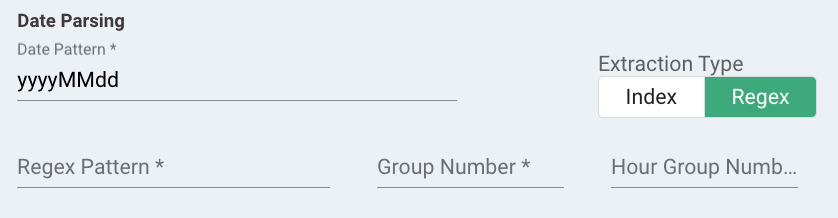
Button Extraction Type Index / Regex - This is used to identify the date portion of the file and to help determine if a new file has been delivered or not.
Start Index: This is the first position of the date portion in the file name.
End Index: This is the end position of the date portion in the file name.
Regex Pattern:
Group Number
For Regex:
Regex Pattern: The pattern may look something like this for daily.*.sample-file_(.*).*.tsv.gz for hourly it may look something like .*.sample-file_(\d{8})-(\d{2}).tsv.gz. Please replace sample-file with your actual filename
Group number: The results you want to extract are in group 1 if the sample regex from above is used.
Hour Group Number: Only applicable for hourly files. In this instance, it is 2.
File Watcher:
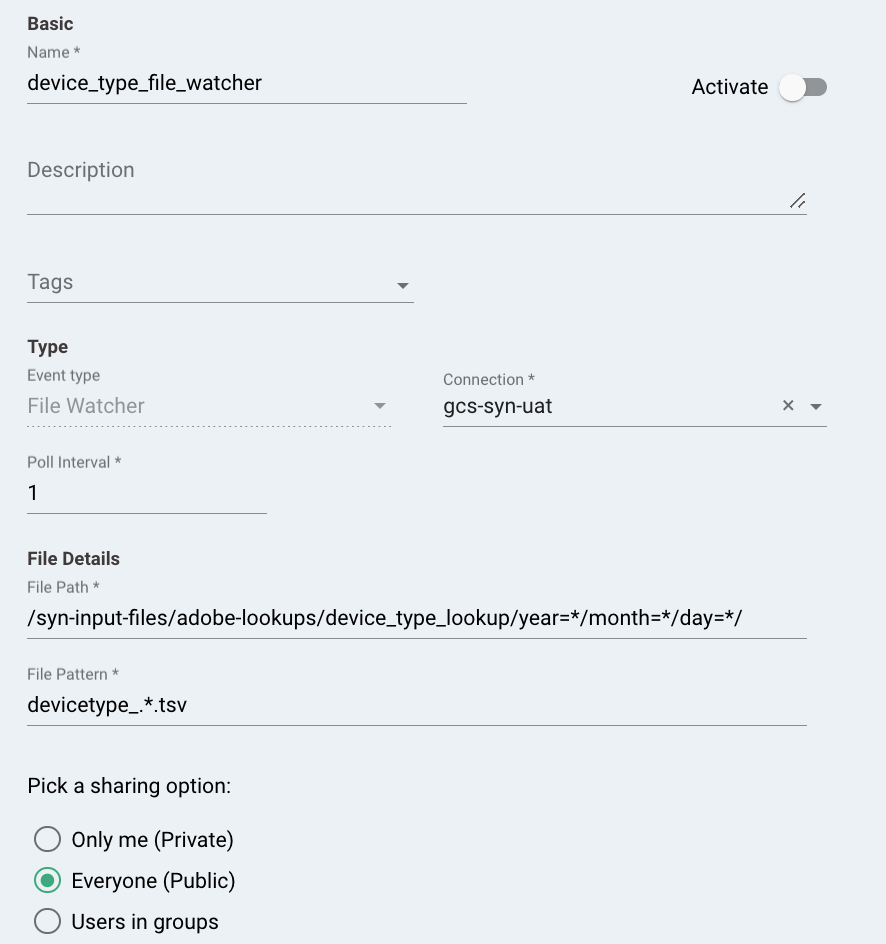
File Details:
File Path: Path to the file in your chosen connection location
File Pattern: The file name or regex file pattern to be monitored.