Zeppelin Notebooks
It is possible to create a SPARK runtime with Apache Zeppelin enabled.
Follow the below are the steps:
- Go to Runtime and click the plus icon (
 ).
). - Insert your configurations for the SPARK runtime:
- Turn on the Zeppelin switch for your runtime (turn off "Termination on completion" so that you get more time to experiment with the notebook).
- Ensure "Idle Time Deletion Interval In secs" is set, the default recommended setting is 600.
- Run any job from GCP QA with this created runtime. Example - BQ Loader job or an AA Loader job.
- When a cluster is spun up with your runtime, go to STEP LOGS.
- Click on details in the INFRASTRUCTURE CREATE CLUSTER step. A window with Zeppelin URL should be displayed.
- Copy-paste the Zeppelin URL in your local browser.
- Access to all the data from the Zeppelin notebook is now available.
Available Interpreters
- Spark (version 2+)
- BigQuery
- Python
- .. many more
Configuring Zeppelin with BigQuery
BigQuery requires a minor set up of PROJECT_ID when creating a new Zeppelin notebook.
Using Zeppelin Notebook with Spark
There are no pre-requisites to use Spark with Zeppelin. When you create a new notebook, you can attach a Spark interpreter to it and start writing your Spark code.
Refer to the below step-by-step guide for using Spark runtime in your Zeppelin notebook:
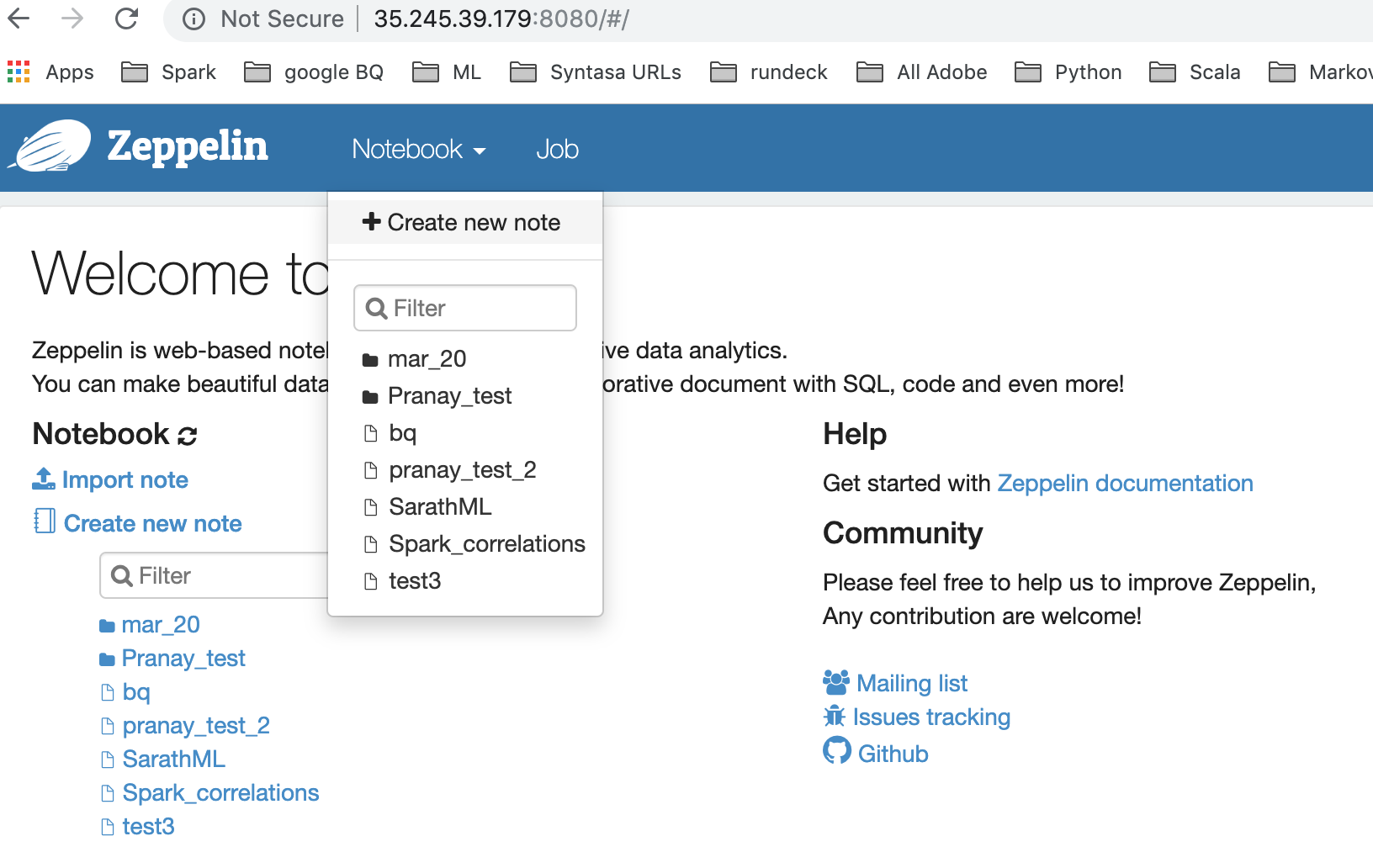
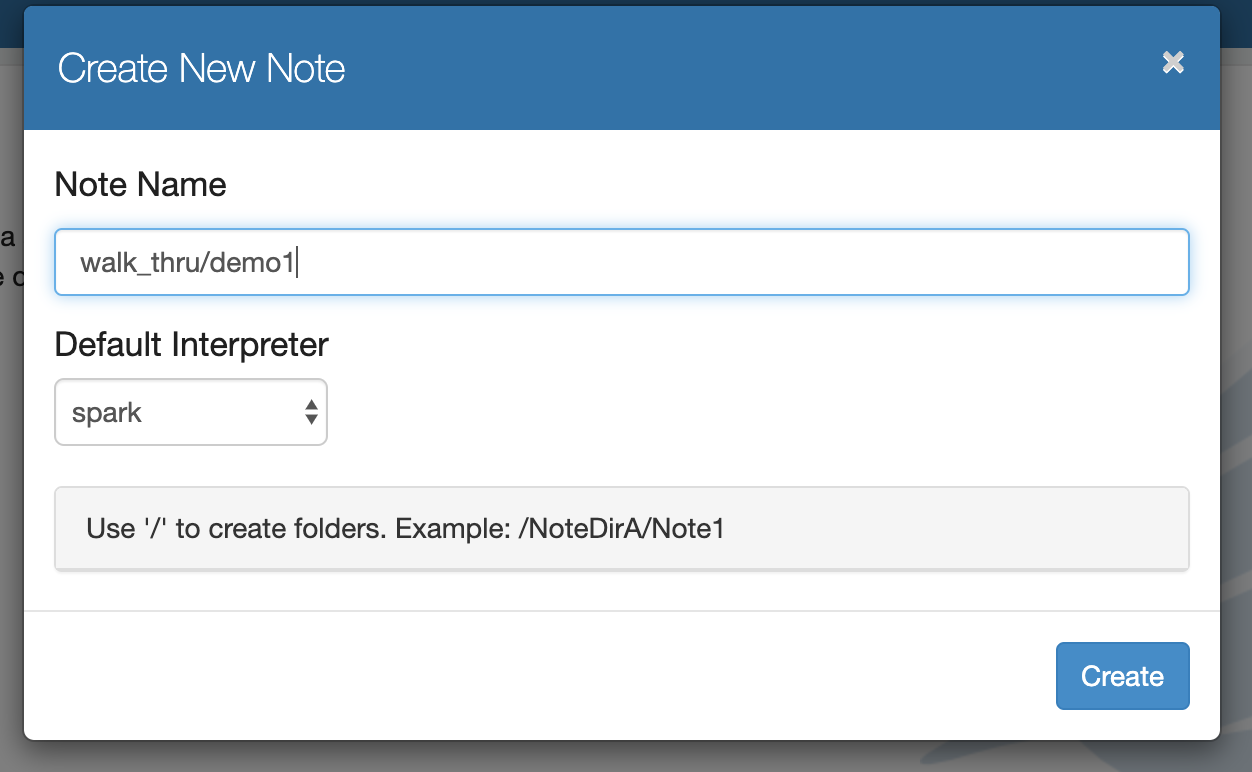
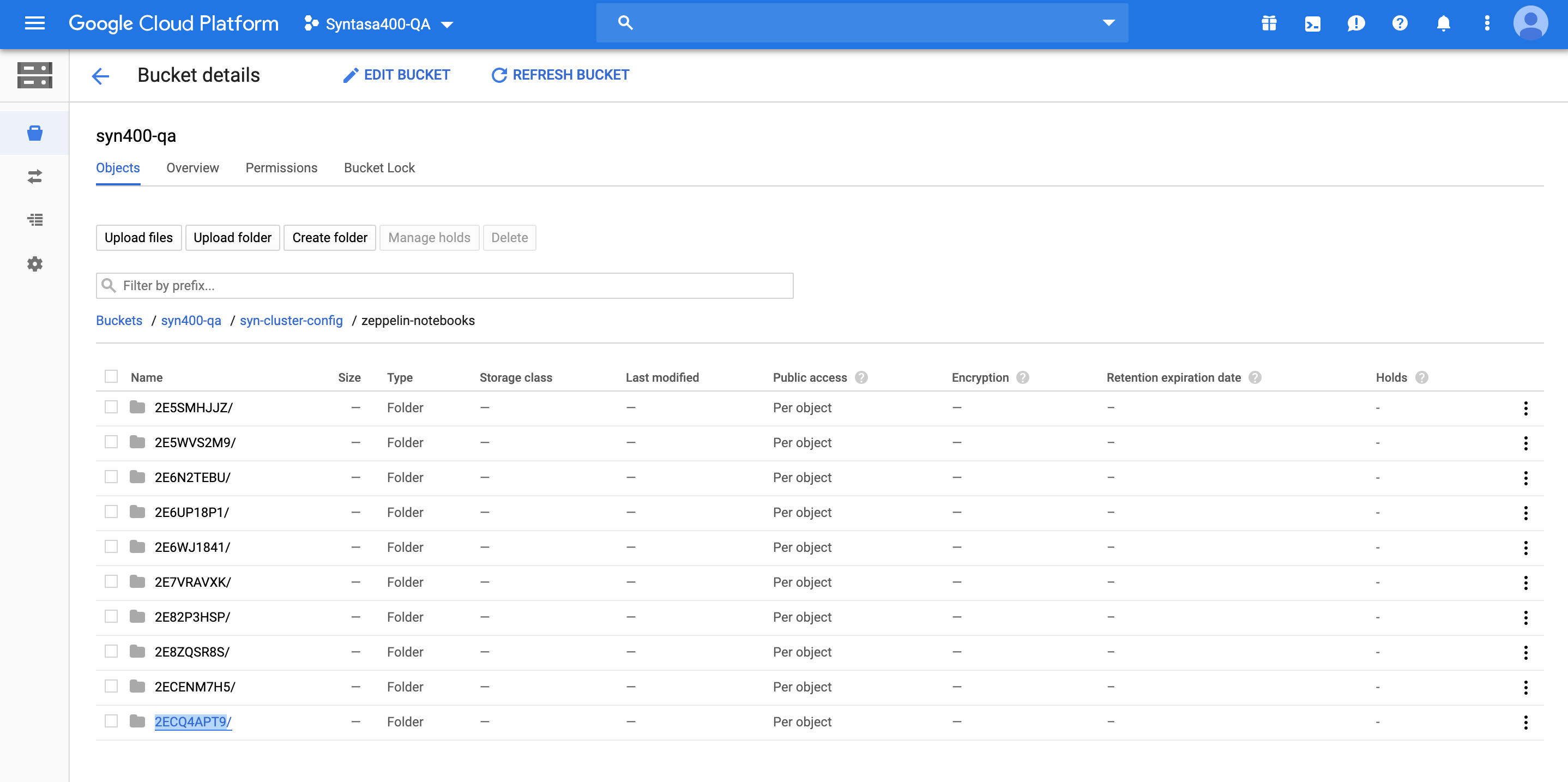
Notice the URL in your browser - The last section of the URL has a unique code - for e.g 2ECQ4APT9 - this is the name of the folder where JSON format of the notebook is stored.
All notebooks are stored at "PROJECT-ID/syn-cluster-config/zeppelin-notebooks" PATH:
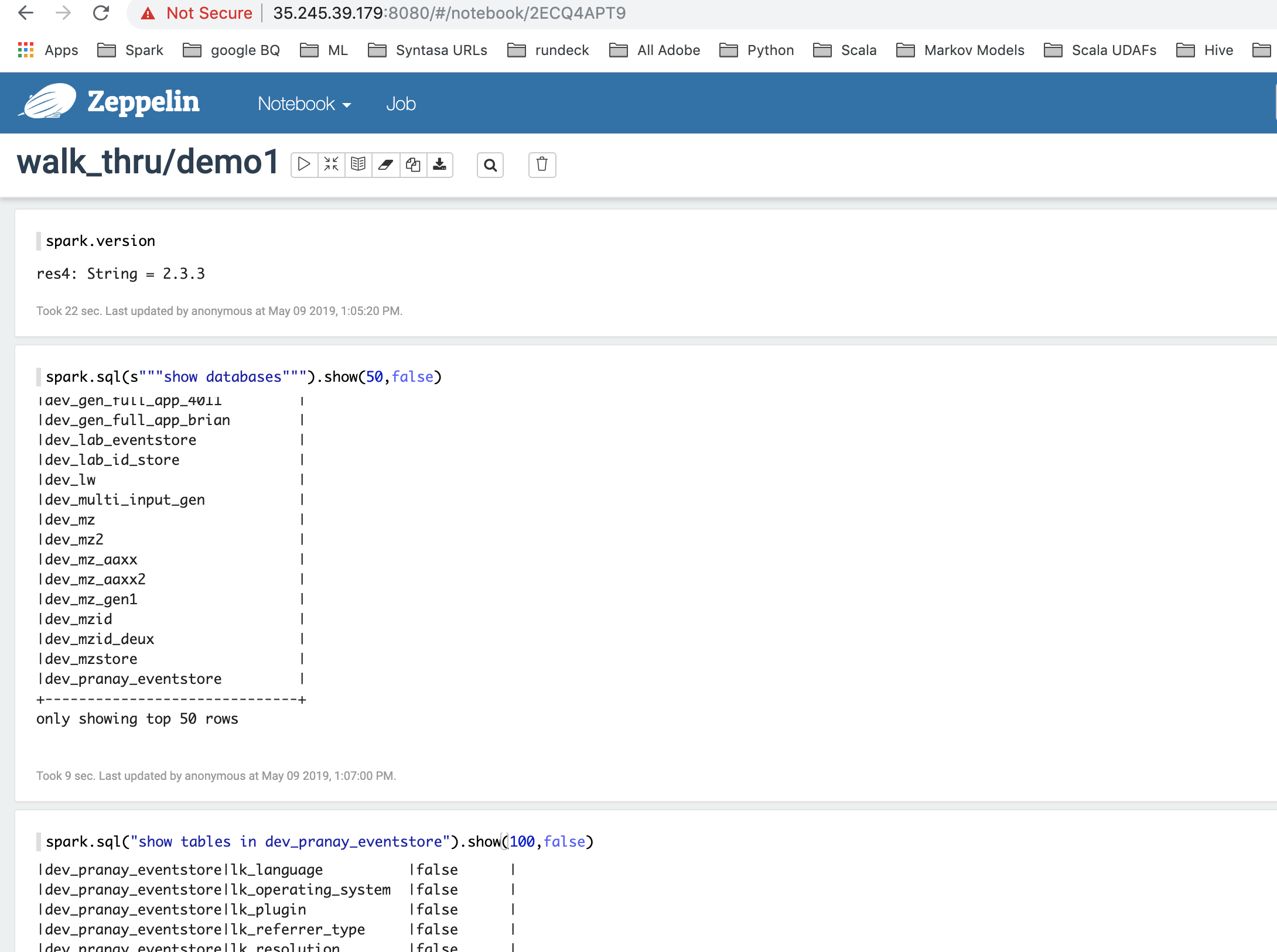

spark.version // prints the spark version // res4: String = 2.3.3 |

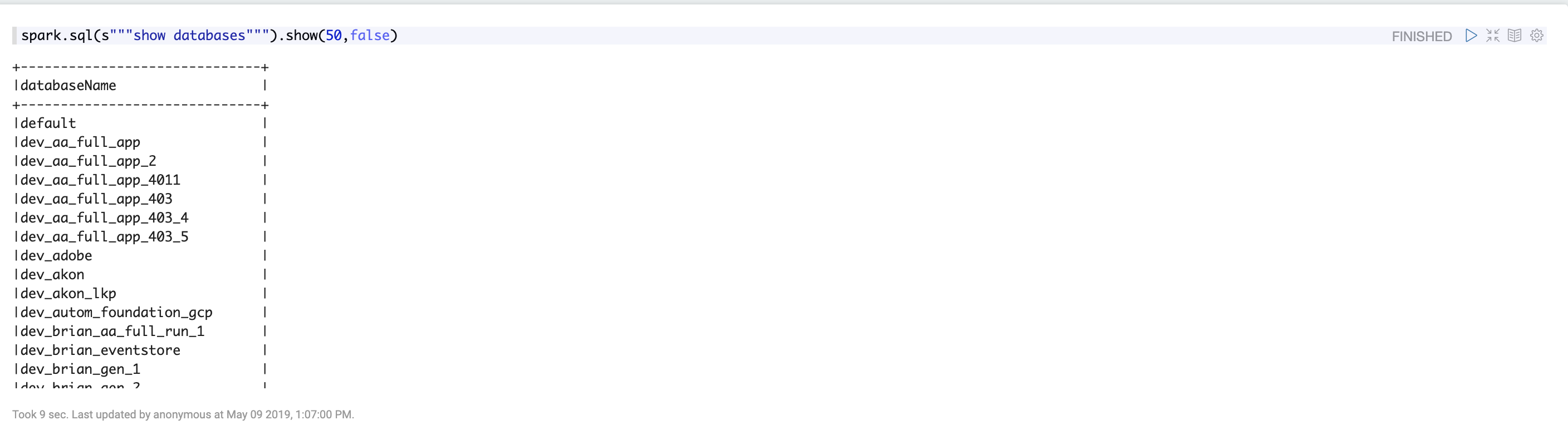
spark.sql(s``""``"show databases"``""``).show(``50``,``false``) |
Show databases from your notebook:
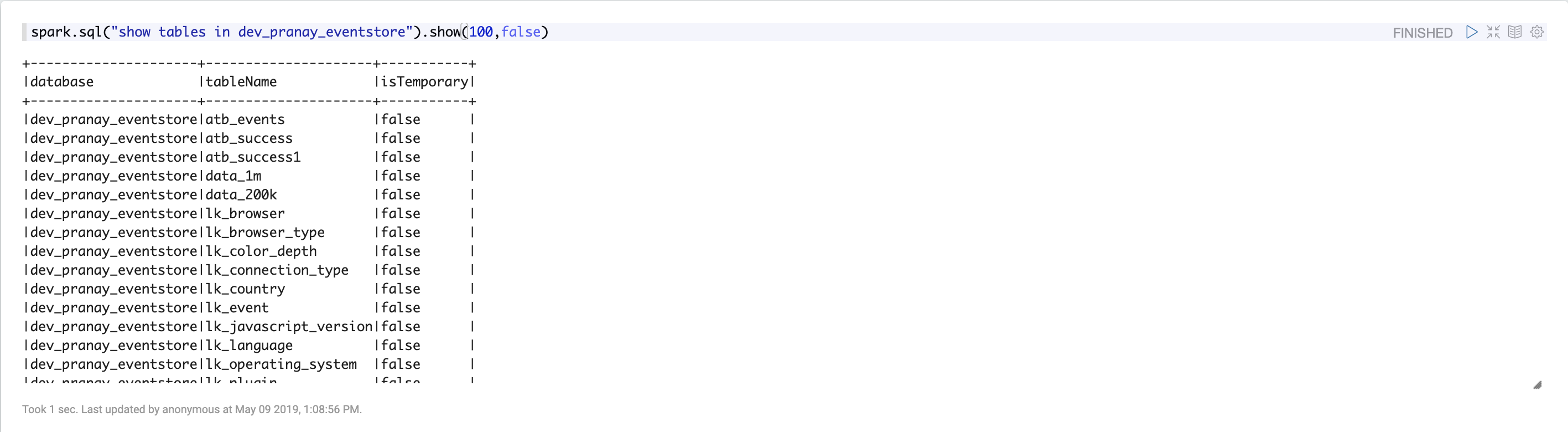
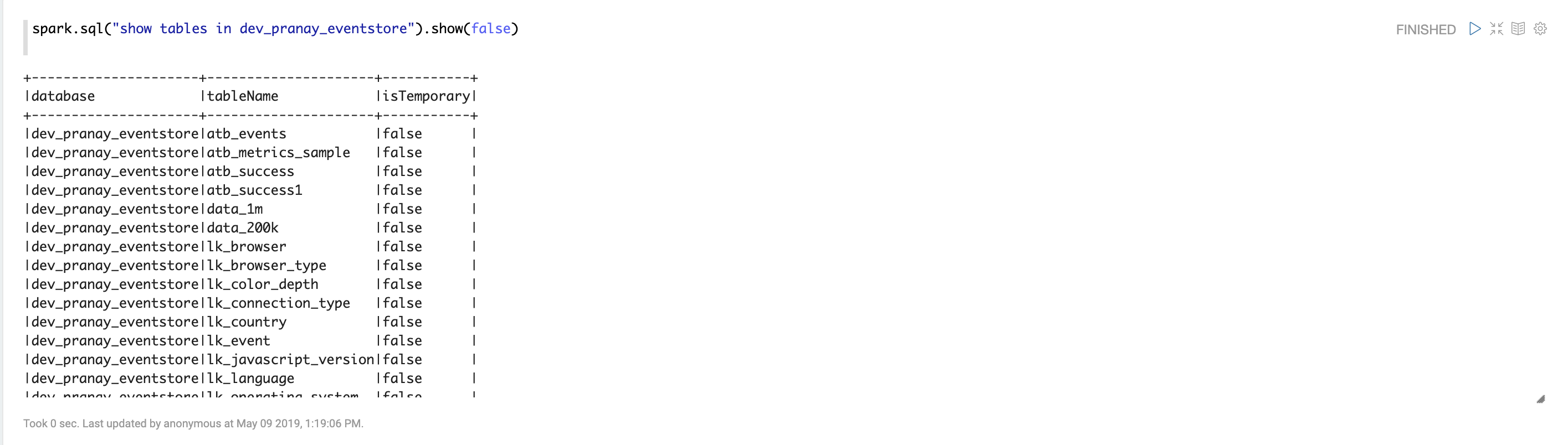
Show tables in your database:
Look at the schema of one of the tables:

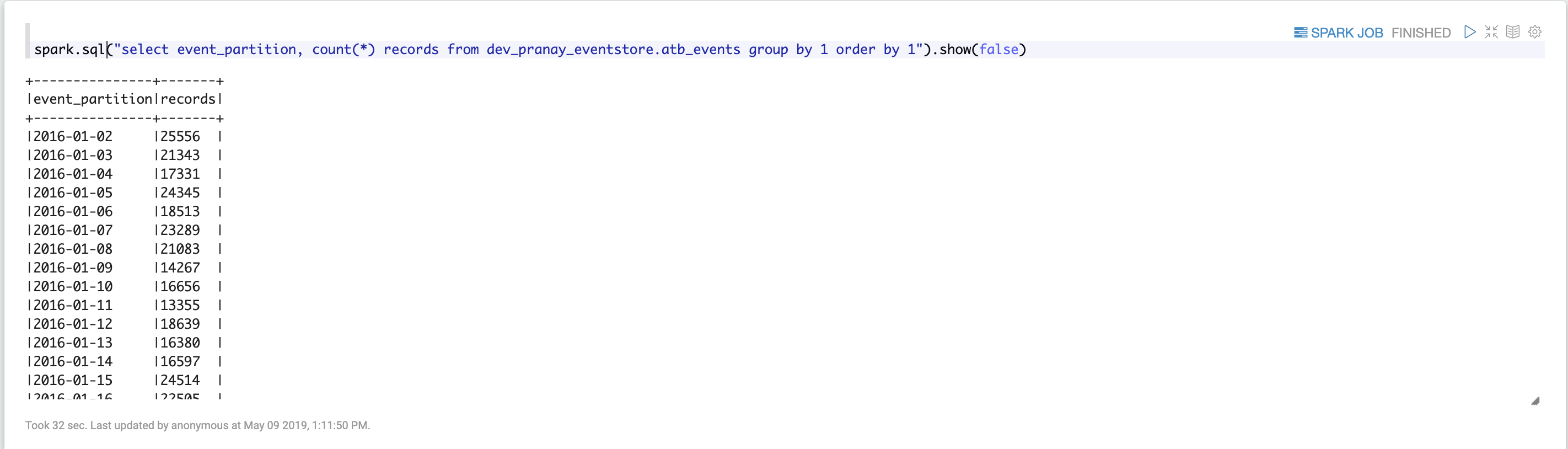
View records per day for this table:
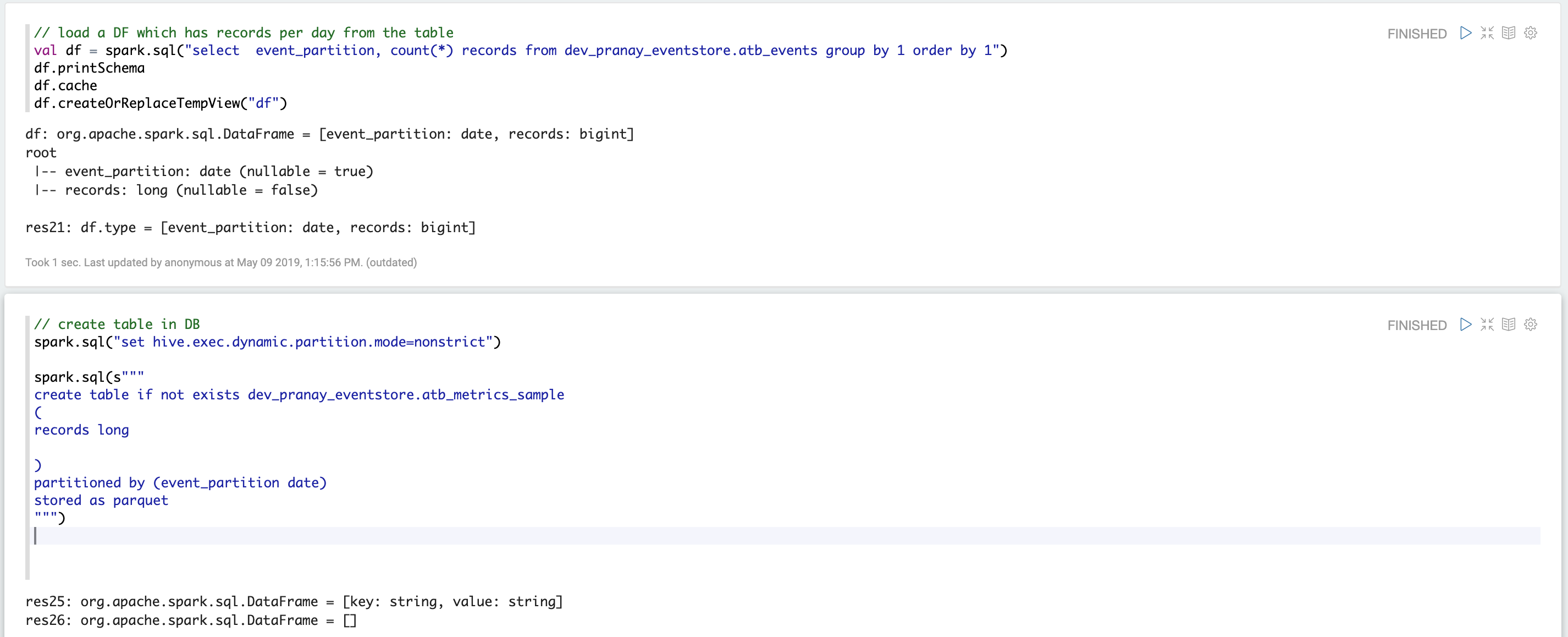
Load DF and create a table in the database:
Now you can see your tableatb_metrics_sample in your database:
Let us save the data into this table:

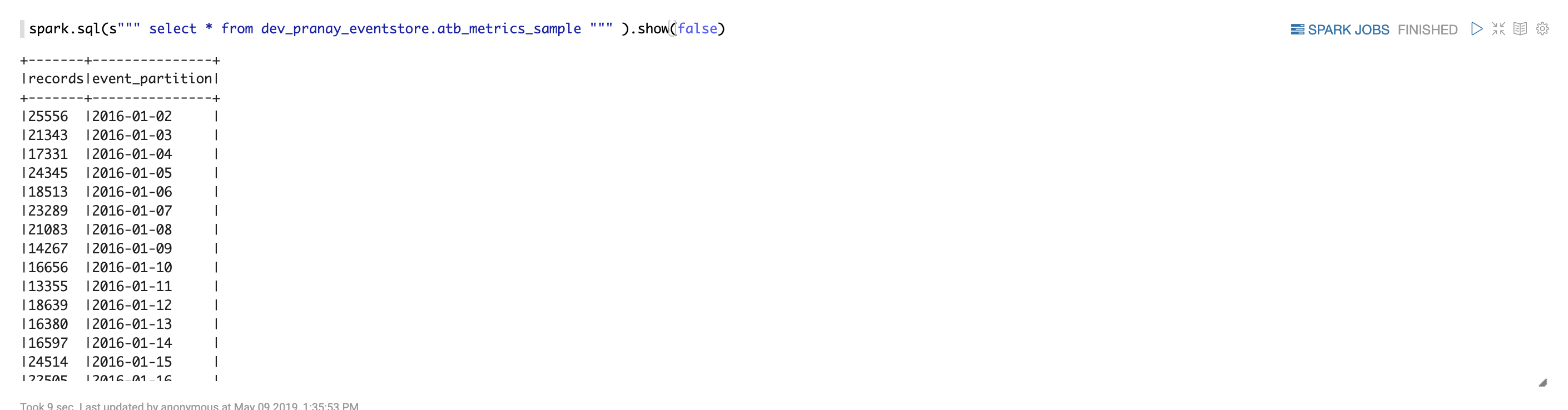
See records in this table:
Features
- Notebooks are saved to Google Cloud Storage. This allows a user to open the notebook in the future and resume his/her work (All notebooks are stored at "PROJECT-ID/syn-cluster-config/zeppelin-notebooks" PATH).
- All the Syntasa data that is usually accessible through Hive/Spark is accessible from within the Zeppelin Notebook (Time taken to run your piece of code from notebook will depend on the Spark runtime configurations that you create).
- Similar to Jupyter, it allows you to run your code in blocks.
Note- This is currently in experimental mode. More developments to follow.