Using MLflow in JupyterLab on Syntasa
MLflow is natively integrated into the Syntasa platform to provide end-to-end machine learning lifecycle management. This integration enables teams to track experiments, ensure reproducibility, and manage models directly from JupyterLab without additional configuration.
Syntasa delivers MLflow as a managed service, tightly coupled with Notebook Workspaces. The MLflow tracking server is preconfigured, authentication is handled automatically, and required client libraries are available by default in supported notebook kernels.
Key Components
The MLflow integration in Syntasa consists of the following core components:
- MLflow Tracking UI
A centralized web interface for visualizing experiments, comparing runs, reviewing metrics, and managing registered models. - MLflow Client SDK
ThemlflowPython library is pre-installed in all standard Syntasa notebook kernels. - Integrated Authentication and Authorization
Access to MLflow is governed by Syntasa user roles and permissions, ensuring secure and consistent access control.
Accessing the MLflow Tracking UI
You can launch the MLflow Tracking UI directly from the Syntasa user interface.
Steps
- Log in to the Syntasa platform.
- From the left-hand navigation menu, locate the Integration section.
- Click MLflow.
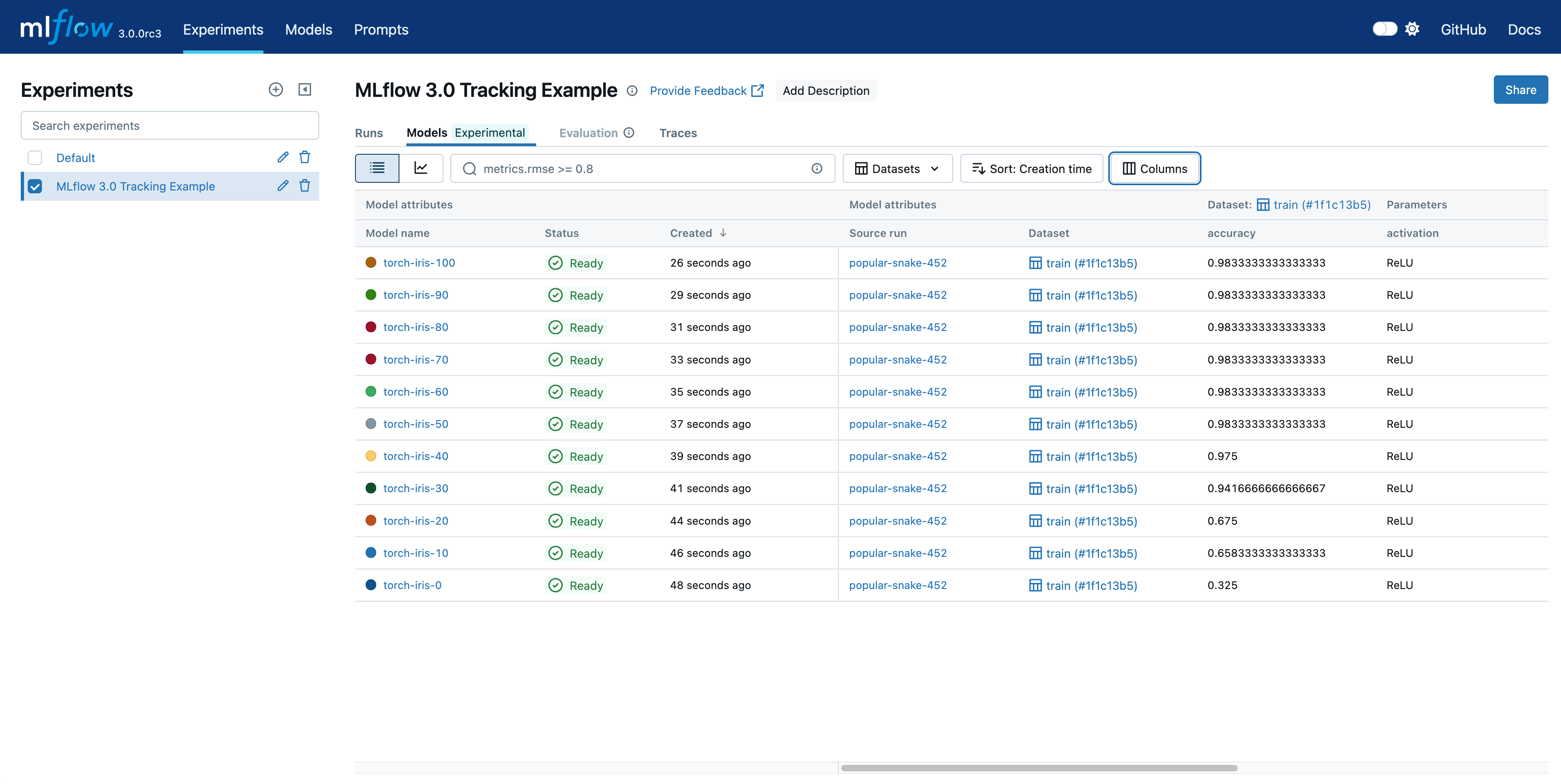
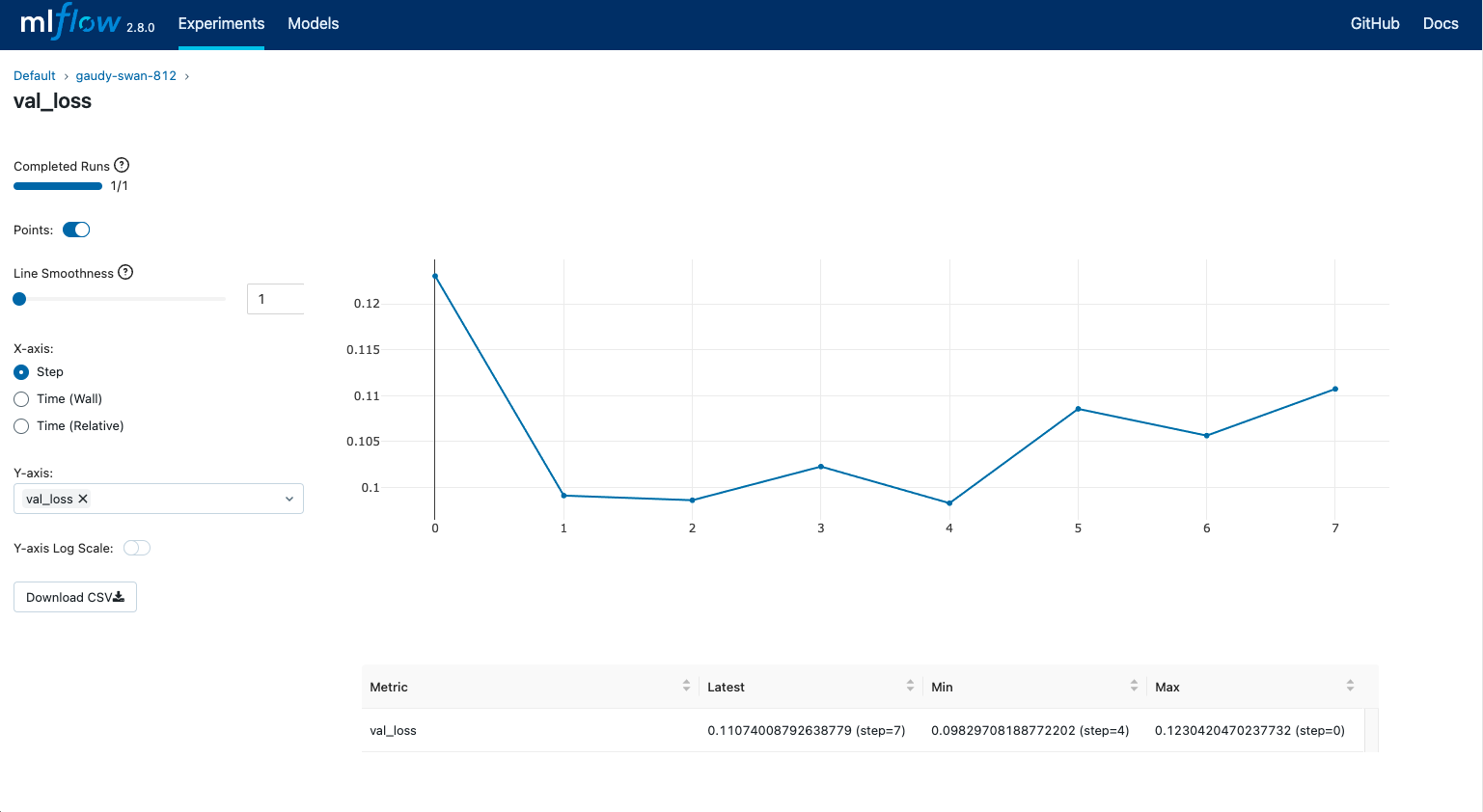
- The MLflow Tracking UI opens in a new browser tab, displaying available experiments, runs, and registered models.
Using MLflow in Syntasa Notebooks
All Syntasa Python notebook kernels (Python 3.7, 3.9, 3.10, and 3.11) include the MLflow client library by default. No manual installation is required.
Initialize MLflow Tracking
Import the MLflow library and optionally set an experiment name. If the experiment does not already exist, it will be created automatically.
import mlflow
# Optional: set or create an experiment
mlflow.set_experiment("Customer_Churn_Analysis")
The tracking URI is managed by the Syntasa environment and does not need to be configured explicitly.
Log Parameters and Metrics
Use MLflow APIs to capture model hyperparameters and performance metrics during training.
with mlflow.start_run():
# Log parameters
    mlflow.log_param("learning_rate", 0.01)
    mlflow.log_param("n_estimators", 100)
# Model training logic
    accuracy = 0.95
# Log metrics
    mlflow.log_metric("accuracy", accuracy)

    print(
        f"Run logged under experiment: "
        f"{mlflow.get_experiment(mlflow.active_run().info.experiment_id).name}"
    )
Log Artifacts and Models
Artifacts such as trained models, plots, and output files can be associated with each MLflow run.
# Log a Scikit-Learn model
mlflow.sklearn.log_model(sk_model, "model")
# Log a local file or visualization
mlflow.log_artifact("confusion_matrix.png")
These artifacts are accessible directly from the MLflow Tracking UI.
Tutorial: Track a Simple ML Experiment
This example demonstrates end-to-end experiment tracking using a Random Forest classifier.
Step 1: Create a Notebook
Launch a Notebook Workspace and create a new Python 3.9 or later notebook.
Step 2: Run Training Code
import mlflow
from sklearn.ensemble import RandomForestClassifier
from sklearn.datasets import load_iris
from sklearn.model_selection import train_test_split
# Load dataset
iris = load_iris()
X_train, X_test, y_train, y_test = train_test_split(
    iris.data, iris.target, test_size=0.2
)
# Start MLflow run
with mlflow.start_run(run_name="Iris_RF_Base"):
    params = {"n_estimators": 50, "max_depth": 5}
    mlflow.log_params(params)

    rf = RandomForestClassifier(**params)
    rf.fit(X_train, y_train)

    score = rf.score(X_test, y_test)
    mlflow.log_metric("score", score)

    mlflow.sklearn.log_model(rf, "iris_rf_model")
    print(f"Accuracy: {score}")
Step 3: View Results
Return to the Syntasa main menu and open MLflow.
Locate the Iris_RF_Base run under the relevant experiment to review parameters, metrics, and artifacts.
Troubleshooting
MLflow Library Not Found
- Ensure the notebook is using a standard Syntasa Python kernel.
- If the issue persists, verify the kernel image version with your administrator.
Connection Errors
- Confirm that the Notebook Workspace has active network access.
- Ensure the MLflow service is running in the environment.
Missing MLflow Menu Option
- Verify that your user role includes the required Launch permissions in Syntasa.
Administrator Notes
-
Service Endpoint
The MLflow service is exposed through the API Gateway at:
/launch/mlflow/ -
Kernel Images and Versions
MLflow versions are managed within Syntasa notebook kernel images:- MLflow 1.30.1 for legacy environments
- MLflow 2.15.1 for modern Python 3.9+ environments