From File - Overview
The From File process in Syntasa is designed to enable seamless ingestion of data from external files for analysis and processing. It allows users to import structured or unstructured data from various file formats, such as CSV, TSV, Apache logs, and more. The primary purpose of the From File process is to facilitate the extraction, transformation, and loading (ETL) of data into Syntasa for further processing in automated workflows. This process ensures that data from external files can be efficiently parsed, cleaned, and integrated into your data pipelines for actionable insights.
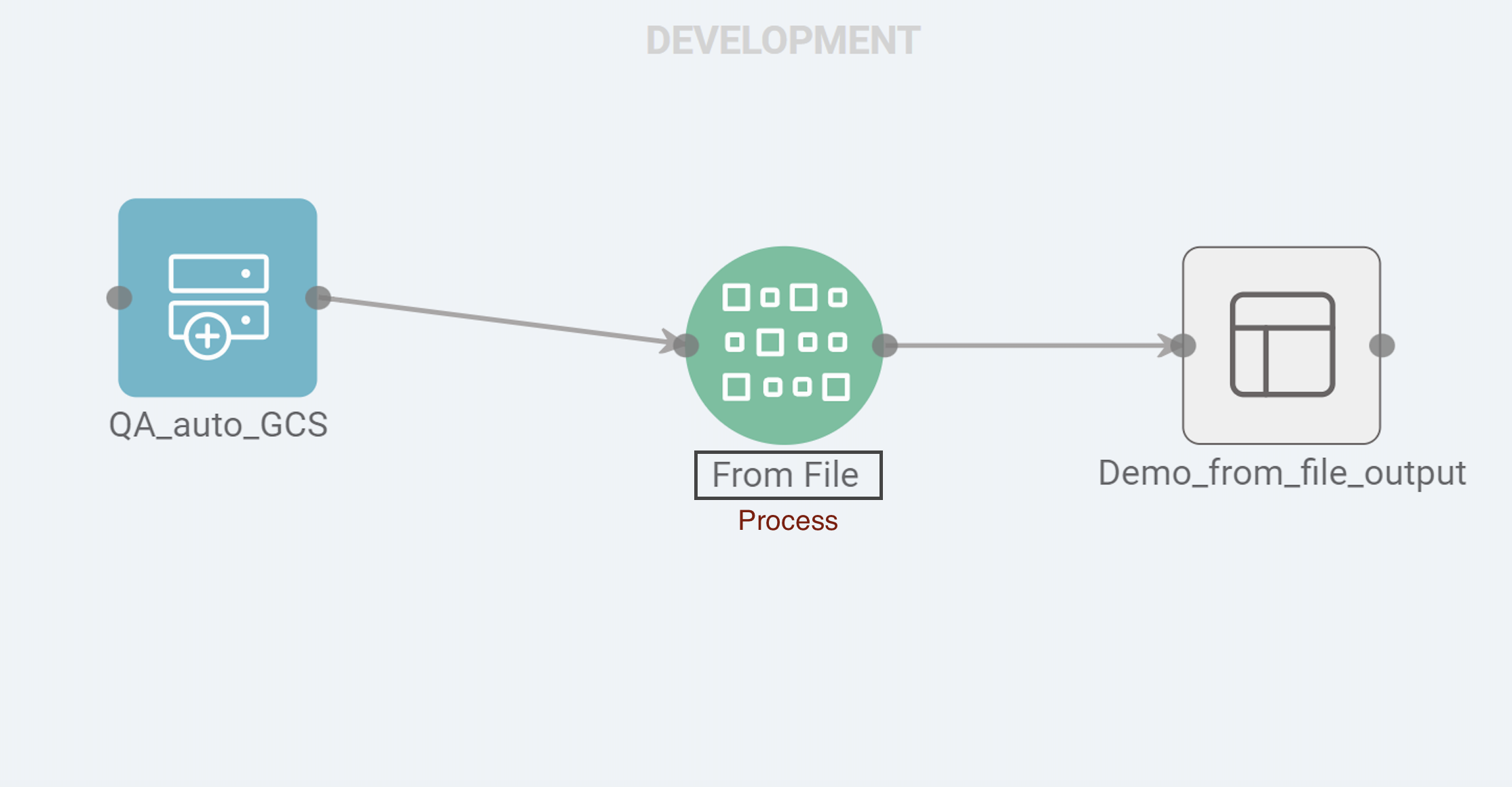
Accepted file format: jar, model, Python Whl, or delimited, potentially containing JSON, Parquet, or Avro data.
Accepted data format: Delimited, Apache logs, and, Hive text.
Accepted connection type: Ftp, Gcs, Sftp, S3, Network, Hdfs, and, Azure Storage.
Whether you have a file of type delimited, Apache logs or hive text, the configurable fields almost remain same except few. This article explains each feature considering the example of a Delimited file. For understanding Apache logs and its related fields, please refer article on Apache Logs.
Prerequisites
It requires at least 1 Connection(s) of type Ftp, Gcs, Sftp, S3, Network, Hdfs, or Azure Storage as input.
First, a source connection of the desired type should be available on the Connection screen. Please refer to this article to learn more about creating a new connection.
Next, drag the same connection type onto the app workflow canvas, map it to the created connection, and then finally, interlink the connection with the From File process to initiate the data flow.
Process Configuration
The process configuration is essential for fetching the correct source files to be processed by the 'from file' processor. It allows users to edit the process display name, define the format of the event data, and specify data partitioning and date extraction types. By handling exactly how the data is fetched and determining the output format, the process configuration ensures precise and efficient data processing. Additionally, it sets the necessary parameters to guide the processing workflow. There are four screens in process configuration:
-
General
This section enables users to assign a personalized name to the From File process. -
The Input screen is where you define the source file and configure its type (e.g., CSV, Apache log). It is crucial for selecting the file path, ensuring the right format is specified, and adjusting any necessary file-specific settings, such as delimiters or encoding. This step prepares the incoming data for processing.
-
The Schema screen is used to define the structure of the data being ingested. Here, users map the fields from the input file to a schema that will be used to interpret and store the data. This screen allows for customization of field types, ensuring proper data interpretation and consistency across the workflow.
-
The Output screen allows you to configure where the processed data will be stored. You can specify the destination, such as cloud storage (e.g., BigQuery, Redshift) or on-premise solutions. Additionally, this screen offers options for naming the output tables, applying compression, and selecting the appropriate data loading method based on the environment (cloud or on-prem).