Navigating the All Campaigns List View
Overview
The All Campaigns list serves as your central hub for viewing, managing, and tracking every campaign within the CCDP platform. From this list view, you can create new campaigns, monitor existing campaigns, evaluate high-level audience metrics, and quickly take action on individual campaigns.
Searching and Creating Campaigns
At the top of the list view, you have global controls to help you find existing campaigns or start new ones.
-
Search Campaign: Use the text input field in the upper right to filter the table in real-time. Simply start typing, and the list will instantly narrow down to campaigns matching your query.
-
Create New (
+Button): Click the green + icon to build a new campaign. This will prompt you to select your desired Channel (Web, Email, Paid Media) and a specific Use Case (e.g., Banner Affinity, Cart Nudge, Social Proofing) before entering the campaign configuration workflow.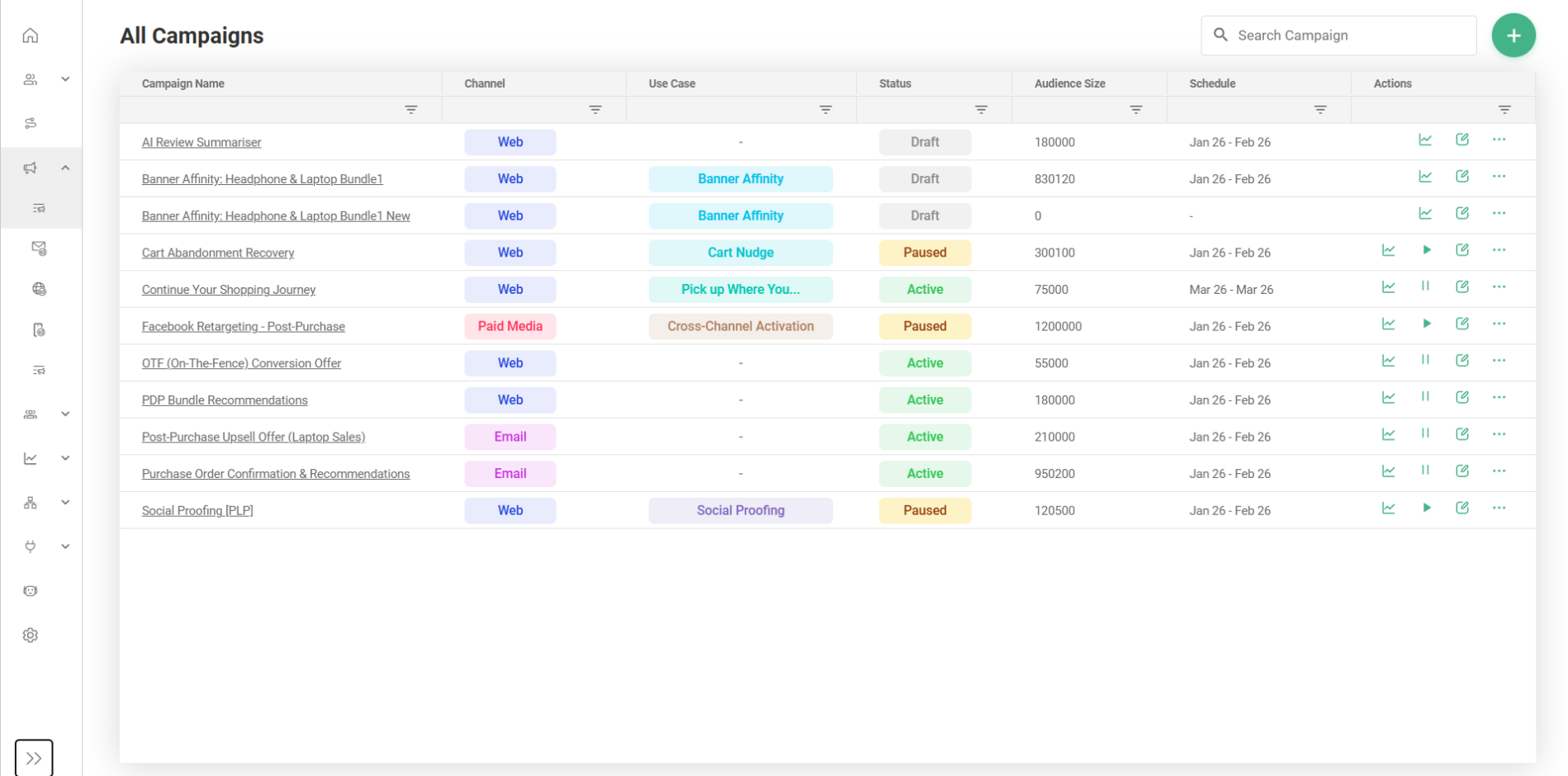
Understanding the All-Campaigns Table
The main table provides a scannable overview of your campaign data. You can refine this view using the filter icons located at the below the column name, as well as sort the data to your preference.
Table Columns
| Column Name | Description | Filter / Sort Capabilities |
| Campaign Name | The designated title of your campaign. Clicking the name will open the campaign in Preview Mode. | Sort alphabetically. |
| Channel | The delivery medium (e.g., Web, Email, Paid Media). | Filter by one or more channels; Sort alphabetically. |
| Use Case | The specific tactic or objective (e.g., Social Proofing). | Sort alphabetically. |
| Status | The current operational state of the campaign. | Filter by one or more statuses; Sort alphabetically. |
| Audience Size | The total number of users targeted by the campaign. | Sort numerically (ascending or descending). |
| Schedule | The start and end dates for the campaign. | Sort chronologically based on the scheduled start date/time. |
| Actions | Quick-access tools for managing the campaign. | - |
Campaign Status Glossary
Hovering over a campaign's status in the UI will display a tooltip explaining its current state. Here is a complete breakdown of what each status means:
| Status | UI Tooltip Text / Definition |
| Draft | This campaign is still being set up and hasn’t been submitted yet. |
| Scheduled | This campaign is ready and will start automatically at the scheduled time. |
| Activating | This campaign is going live and is being prepared by the system. |
| Active | This campaign is currently live and delivering experiences. |
| Paused | This campaign is temporarily stopped and can be resumed at any time. |
| Completed | This campaign has ended and is no longer running. |
| Failed | This campaign couldn’t go live due to an error and needs attention. |
| Archived | This campaign is inactive and kept for reference only. (Hidden by default) |
Managing Campaigns (Row-Level Actions)
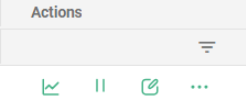
On the right side of each campaign row, you will find a set of icons that allow you to perform quick actions.
-
📈 View Performance (Graph Icon): Navigates away from the list view directly into the dedicated Campaign Performance Dashboard for that specific campaign.
-
⏸️ / ▶️ Toggle Status (Pause/Play Icon): Click to pause an Active campaign or resume a Paused campaign. This will prompt a confirmation modal before the status is officially updated.
-
📝 Edit (Pencil Icon): Opens the campaign in Edit Mode.
-
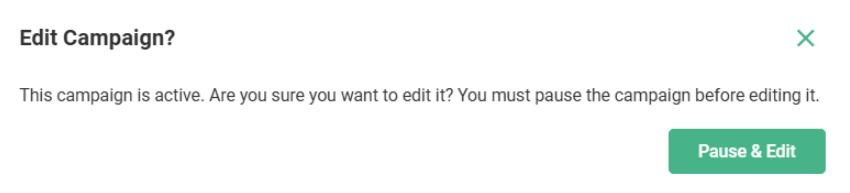
Note on Active Campaigns: If you attempt to edit a campaign currently marked as "Active," a prompt will appear requiring you to "Pause & Edit." Campaigns must be paused before structural changes can be made
-
-
More Options (
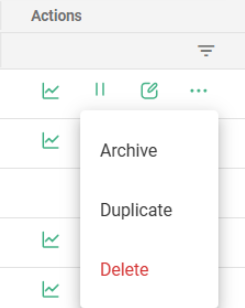
...Ellipsis Icon): Opens a dropdown menu with the following advanced actions:-
Duplicate: Copies the campaign and bypasses the "Select Use Case" step. It lands you directly into Step 1 of the configuration workflow, pre-populated with the original campaign's data. The name will be appended with "(Copy)" to prevent duplicates.
-
Archive: Moves the campaign to an "Archived" status upon confirmation. Archived campaigns are hidden from the main view
-
Delete: Permanently deletes the campaign upon confirmation.
-