Git Repo Connection and App Integration Guide
Syntasa supports Git Repository Connections, enabling seamless integration with external Source Control Management (SCM) systems. This capability allows teams to import and export Syntasa apps, maintain version control, and collaborate efficiently across environments using familiar Git workflows.
Creating a Git Repo Connection
Follow the steps below to configure a connection to an external Git repository.
Step 1: Access Connection Configuration
- Navigate to Resources > Connections from the Syntasa sidebar.
- Click Add (+) or Create Connection.
- Enter a unique Name for the connection.
- Select Git Repo from the Connection Type dropdown.
Step 2: Configure SCM and Repository Details
In the Connection Params section, provide the following information:
Repository Configuration
-
SCM Type
Select your source control provider:- GitHub
- GitLab
- Bitbucket
-
Repository URL
Enter the full repository URL. Supported formats include:https://github.com/org/repo.gitgit@github.com:org/repo.git
Authentication Methods
Choose one of the following authentication options:
Access Token
-
Username
Required only for Bitbucket.Note: This field is automatically hidden for GitHub and GitLab, which use the token for identification.
-
Access Token
Enter a valid Personal Access Token (PAT) with read permissions.
SSH
-
SSH Key File
Upload your private key using the attachment icon.
Supported formats:.pem.json.key
Step 3: Validate and Select Branch
-
Click Test Repo.
This button becomes active only after all required fields (Repository URL and Authentication details) are valid.
-
On successful validation, the status “Repo Verified” is displayed.
-
Branch Name
- The branch dropdown is automatically populated with available branches from the repository.
- Select the branch you want to associate with this connection.
-
Base Path (Optional)
- Specify a directory path within the repository if you want to limit access to a specific sub-folder.
- This base path is automatically applied whenever the connection is used.
Step 4: Save the Connection
Click Save to finalize and store the Git Repo connection.
Importing an App from a Git Repo
Once a Git Repo connection is created and verified, you can import Syntasa Apps directly from the repository.
Import Procedure
-
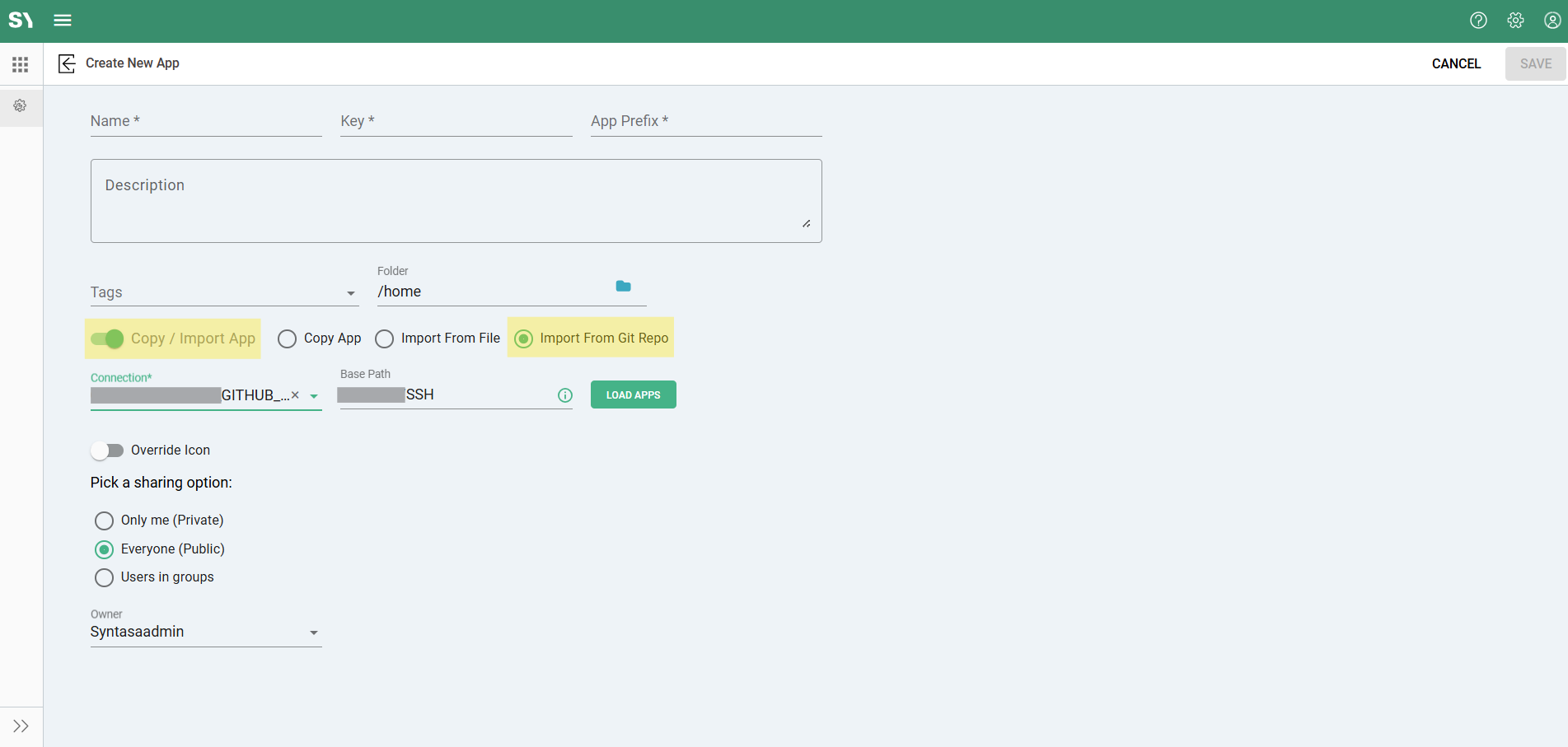
Navigate to the Apps Creation Screen

-
Fill all mandatory and required field e.g. Name
-
Enable Import App Toggle.
-
Select Import from Git Repo.
-
Select Connection
Choose the previously configured Git Repo connection. -
Base path will auto fill as configured in Git Repo connection (you have option to change the basepath here)
-
Select App
Syntasa scans the configured branch and base path for valid app definitions. -
Confirm Import
Review the app details and click Import.
Technical Details and Validation Rules
Connection Verification
-
The Test Repo action is mandatory to retrieve and populate the branch list.
-
If the Repository URL or credentials are modified after verification:
- The Repo Verified status is cleared.
- The repository must be re-tested.
Processor Compatibility
Git Repo connections can be used with multiple processors in the workflow canvas, including:
- Spark Processor
- Container Code Processor
- BigQuery Processor
- Spark Learn / Spark Score
Security
- Personal Access Tokens and SSH keys are encrypted at rest within the Syntasa Business Service.
- Credentials are never exposed in plaintext.