Spark Learn
Description
The Spark KNN Learn process type provides the ability to configure and productionize custom Spark K-Nearest Neighbors Learn code into a Syntasa Composer workflow. By configuring this process it is allowing Syntasa to manage the learning on a scheduled basis. A user will find that there are two ways of importing the code:
- Paste into a text editor window
- Upload a file with the code
After placing the code into text editor, the output locations of the process type will need to be specified.
Once the process is configured and tested it can be deployed to production, and scheduled for Syntasa to run on a scheduled basis.
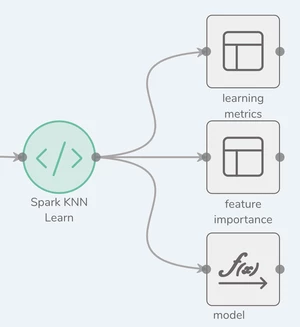
Process Configuration
There are two screens that need configuring for this process type.
- Parameters
- Output
Parameters
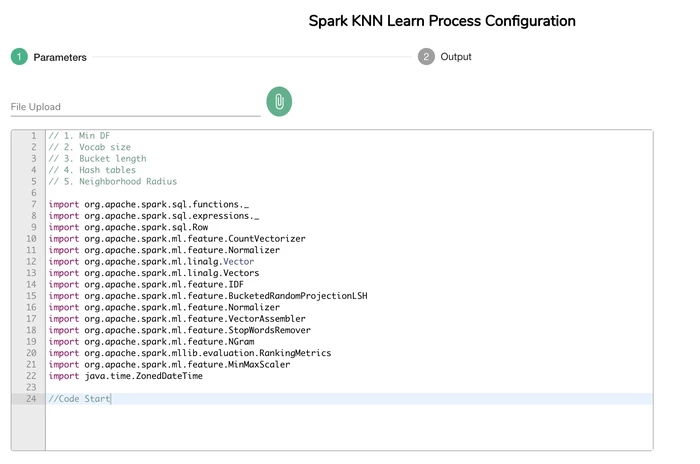
The Parameters screen is where the actual custom code is imported by either pasting or file upload.
File Upload
- Click the
 icon
icon - A file browser window will appear
- Select the file with the code to be imported
- Click Open
- The contents of the file will be placed in the text editor window
- Also, the file name will be displayed just below the "File Upload" heading
Output
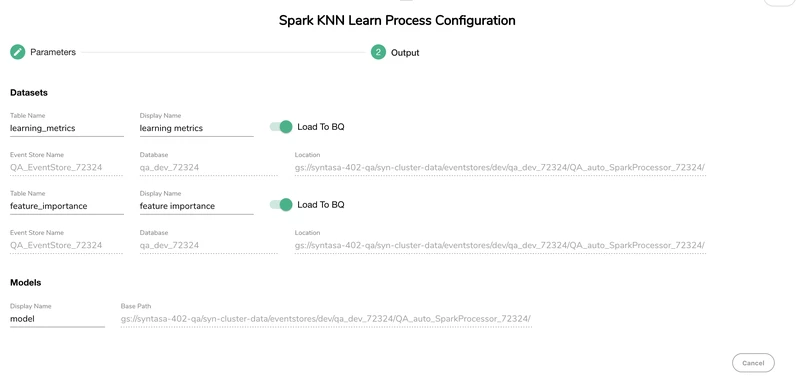
Output screen is where the table name, display name, and model name can be defined along with the option to "Load to BQ" when using Google Cloud Platform or "Load to Redshift" when using Amazon Web Services. There are three outputs for this process type per the following:
- learning_metrics to help provide ability to understand performance
- feature_importance
- model
Expected Output
The expected out of this process type are the model that is stored in the "Base Path" and the learning_metrics and feature_importance stored in the "Location" that are found on the Output screen. Loading to BQ or Redshift helps to make querying the learning metrics and feature importance easier.